

Options
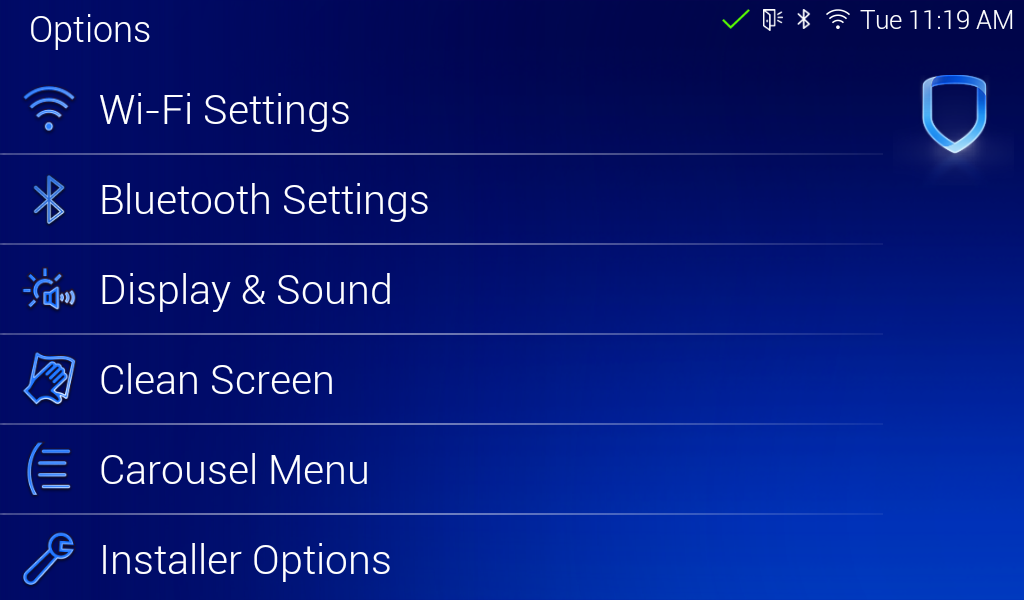
To enter the Options menu, select Options in the Carousel Menu. It allows the user to view and change their keypad settings. These options include Wi-Fi Settings, Display & Sound, Clean Screen, Carousel Menu, Installer Options, Keypad Information, and Arm/Disarm Snapshots.
Wi-Fi Settings
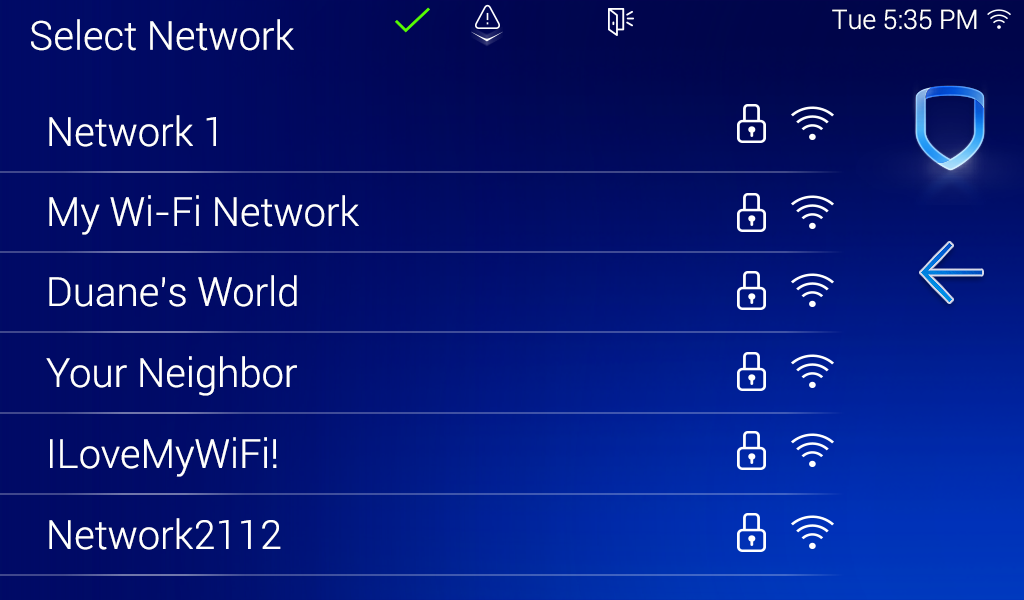
Select this option to connect your keypad to a Wi-Fi network.
The keypad needs to be connected to the network to access certain features. See Network Enabled Features for more information on features that require network connection.
Note: Wi-Fi setup is not necessary when using PoE.
Bluetooth Settings
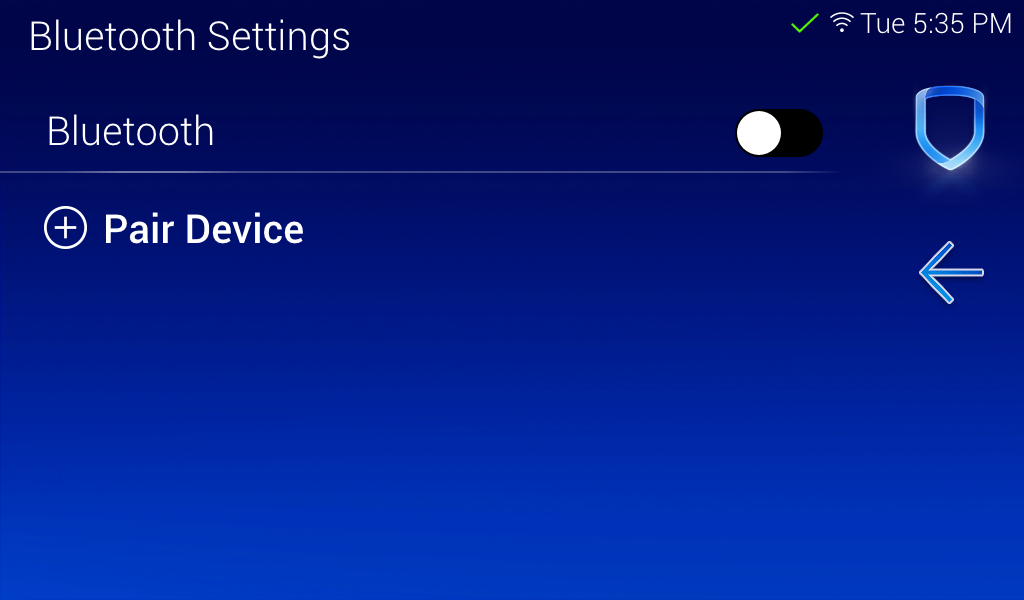
Select this option to pair and manage Bluetooth devices or enable Bluetooth Disarming. To learn more about Bluetooth Disarming, see Train Your Customer: Bluetooth Disarming.
Display & Sound
Brightness
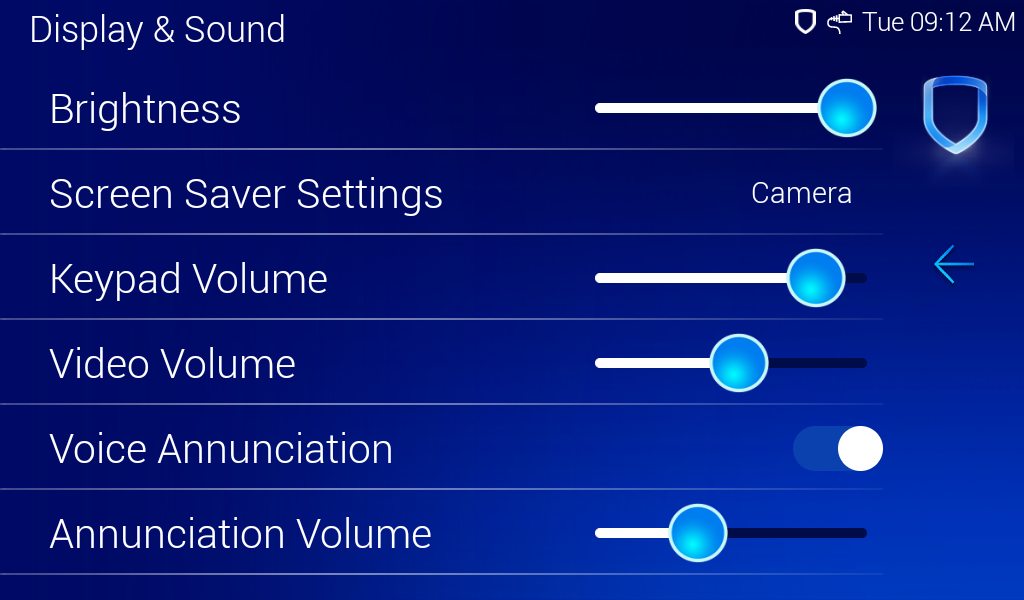
Use the Brightness slider bar to make the keypad display brighter or dimmer.
Screen Saver Settings
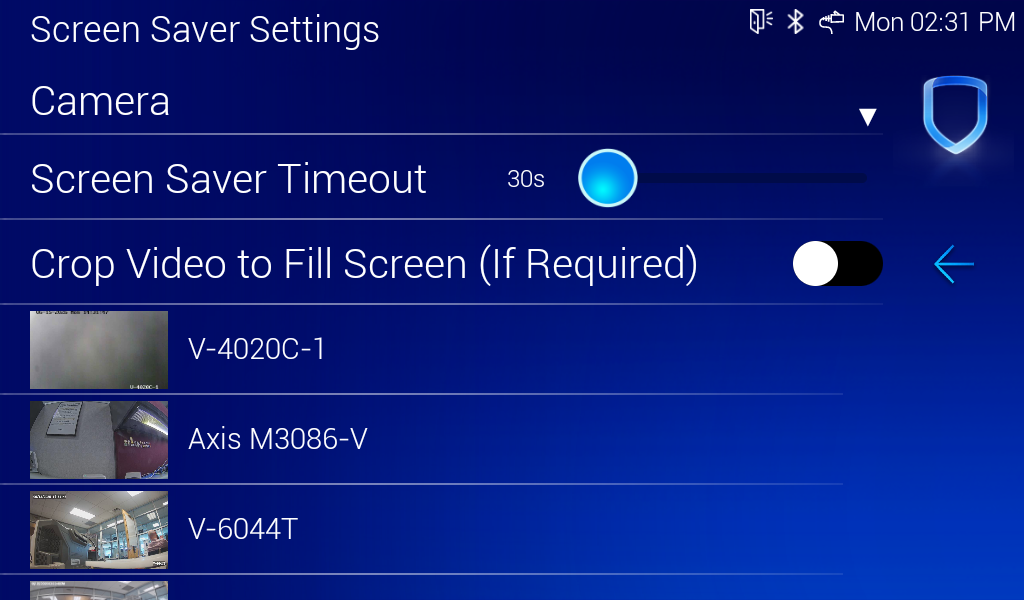
To select a screen saver for the keypad, navigate into Screen Saver Settings. Screen savers are configured on a per-device basis and do not automatically synchronize between devices.
Use the drop down to select from the following screen saver options.
None – No screen saver is selected. The keypad displays the home screen.
Screen Off – The keypad display turns off.
Dim Screen with LED – The keypad display turns off, but an icon that mimics an LED appears at the top of the screen.
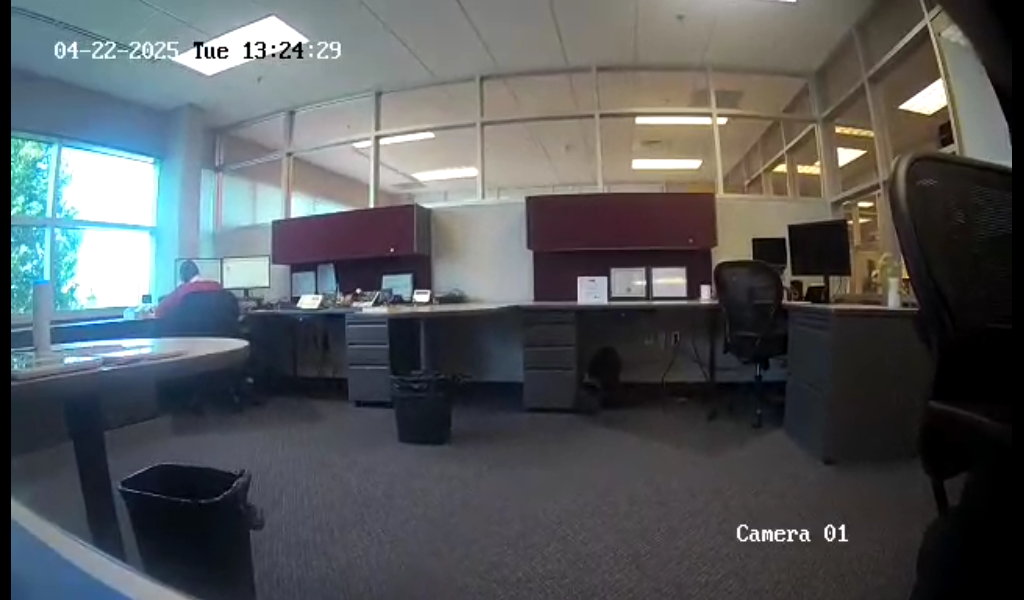
Camera – The keypad displays a live feed of a camera or doorbell from the list. Select which camera or doorbell you want to act as your screen saver.
Note: A single camera can be used as a screen saver on up to four keypads.
Screen Saver Timeout
To set how long the keypad can remain idle before switching to the screen saver, use the Screen Saver Timeout slider. The timeout can be set from 30 to 480 seconds.
Crop Video to Fill Screen (VUE and VUE plus Cameras)
To scale the live feed of a Camera screen saver, use the Crop Video to Fill Screen toggle. When it is toggled ON, portions of the image may be cropped along the edges to maintain the image’s original proportions while eliminating any empty space on the display. When it is toggled OFF, the full camera frame is displayed, which may leave empty space along the top, bottom, or sides of the screen to preserve the image’s original proportions.
Keypad Volume
Use the Keypad Volume slider bar to increase or decrease the volume of the keypad button press sound and the keypad chime sound.
Video Volume
Use the Video Volume slider bar to increase or decrease the volume of all video devices associated with an 8863. This includes live video stream, clip playback, and doorbell volume.
Annunciation
Note: To enable Voice Annunciation, Firmware Version 231 for XT30/XT50 or Firmware Version 231 for XR150/XR550 is required.
Use the Voice Annunciation toggle to have the keypad annunciate that a pre‑defined zone name has been opened when the zone is tripped. Use the Annunciation Volume slider bar to increase or decrease the volume of the keypad annunciation.
If a zone name does not match one of the pre-defined zone names, the keypad annunciates the zone number and appropriate message. For a list of pre-defined zone names, refer to the Pre-Defined Zone Names List. Press the back arrow to go back to the keypad options menu.
Carousel Menu
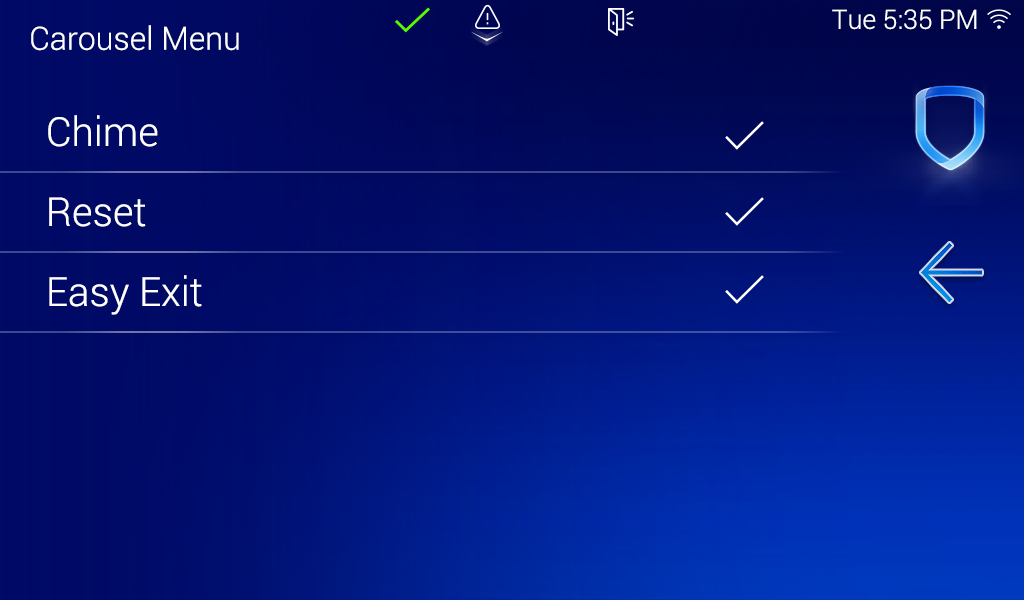
Press each option in this menu to display in the Carousel menu. Options currently displaying in the Carousel menu have a checkmark. The options include Chime, Reset, and Easy Exit.
Note: Easy Exit is only available when the panel is in Home/Sleep/Away arming mode.
.png?cb=8fcbd027f7eac228df146128cef7fd8e)
Installer Options
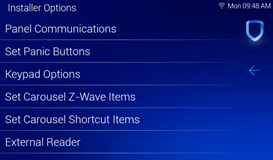
Select this option to open the Installer Options menu. See Installer Options to learn more about each menu option.
Keypad Information
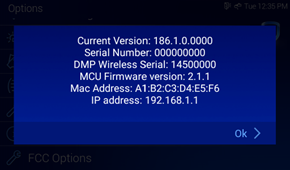
Select this option to see the current firmware version, serial number, DMP Wireless Serial, MCU Firmware Version, MAC Address, and IP Address. Press Ok to return to the previous menu.
Set Arm/Disarm Snapshot
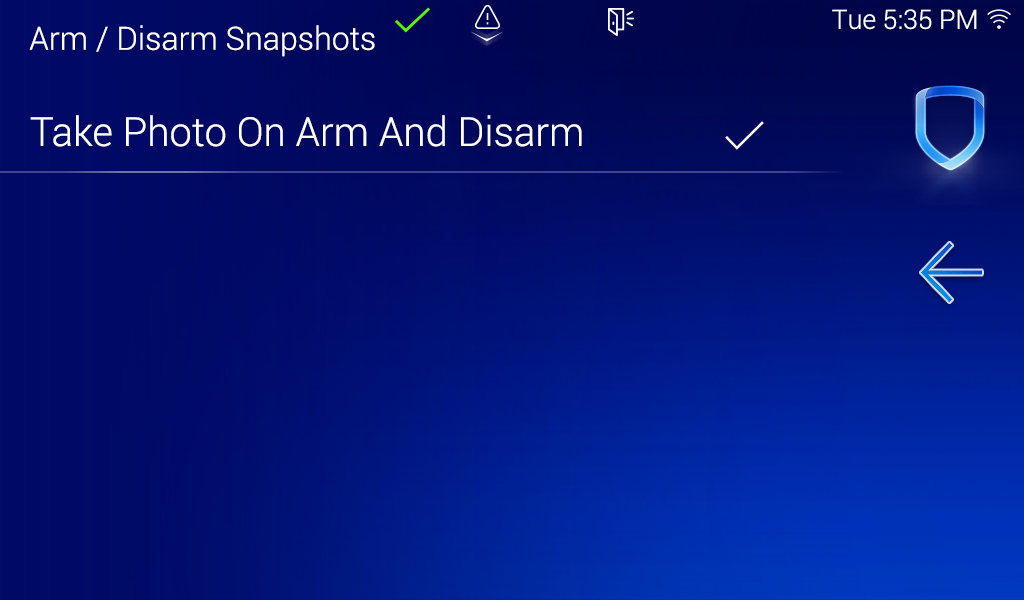
Select this option to enable or disable Snapshot Verification Events at the keypad during an Arming or Disarming event. Default is ON.