The Z-Wave menu allows the user to operate their Z-Wave home automation devices at the keypad. Press Z-Wave categories such as Lights, Doors, Thermostats, Appliances, and Favorites in the Carousel menu to configure their settings.
In the Carousel menu, press Favorites or select a Z-Wave device. Then, select the Settings icon in the bottom right corner to configure device settings.
Note: Z-Wave Lights, Doors, Thermostats, Appliances, and Favorites needs to be enabled in the Carousel Z-Wave Items list to configure Z-Wave settings.
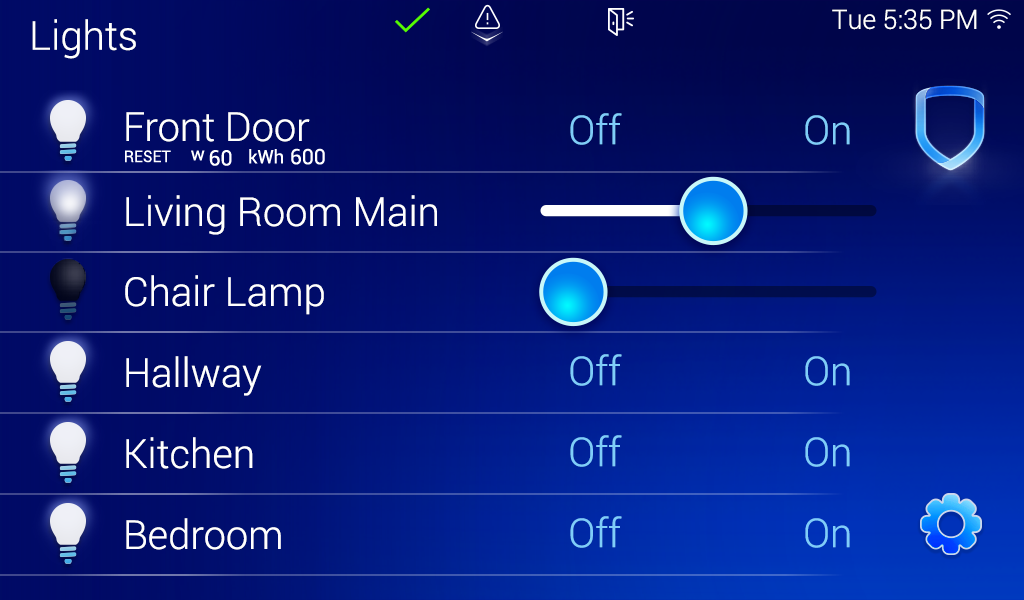
Z-Wave Lights
Z-Wave lights can be turned on and off at the keypad. Use the multilevel slider on the right side of the light to set the light at 0, 25, 50, 75, or 100. 0 is Off and 100 is On. To reset the metered switch for a light, press RESET underneath the light you want to reset.
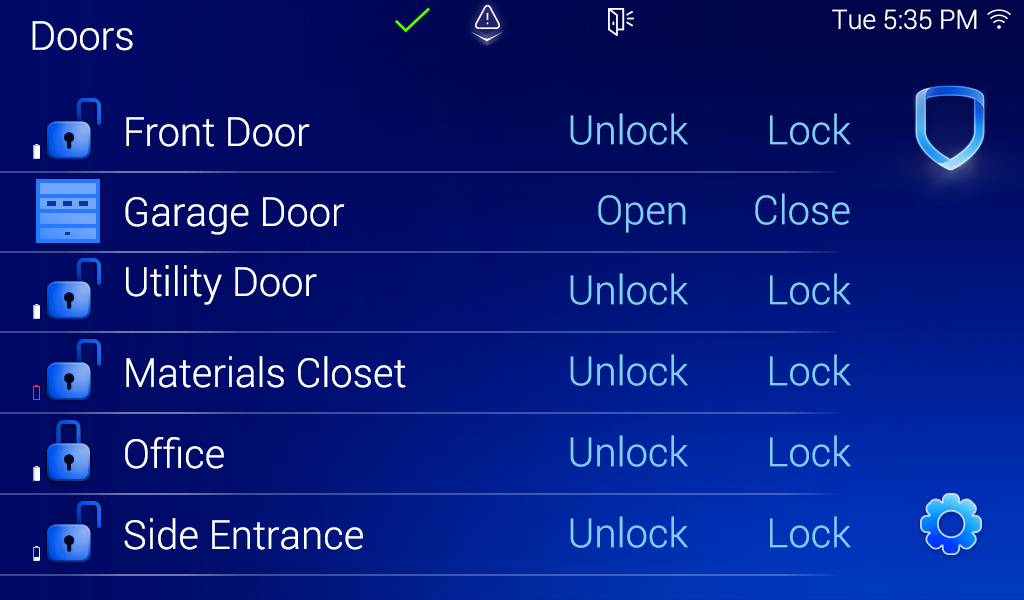
Z-Wave Doors
Z-Wave doors can be locked or unlocked at the keypad. The keypad shows the lock battery level next to the door the lock is assigned to. The garage door icon animates as it is opening or closing. Press Open or Close to activate the garage door animation.
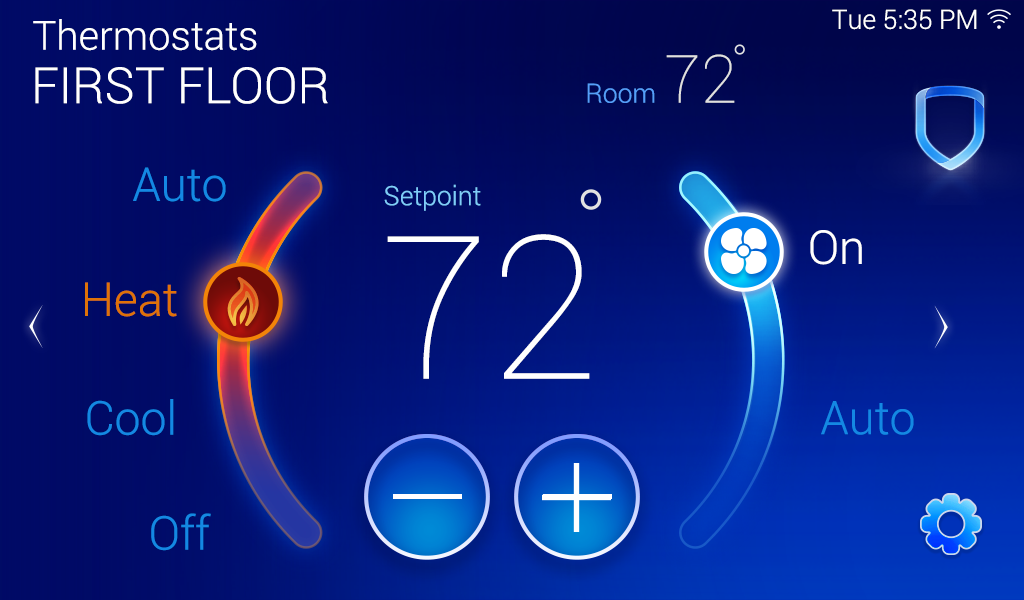
Z-Wave Thermostat
Z-Wave thermostats can be controlled at the keypad. Use the slider handles or the setpoint increase and decrease buttons to change the temperature. When there are multiple Z-Wave thermostats on a system, swipe the screen to the left to access additional thermostats.
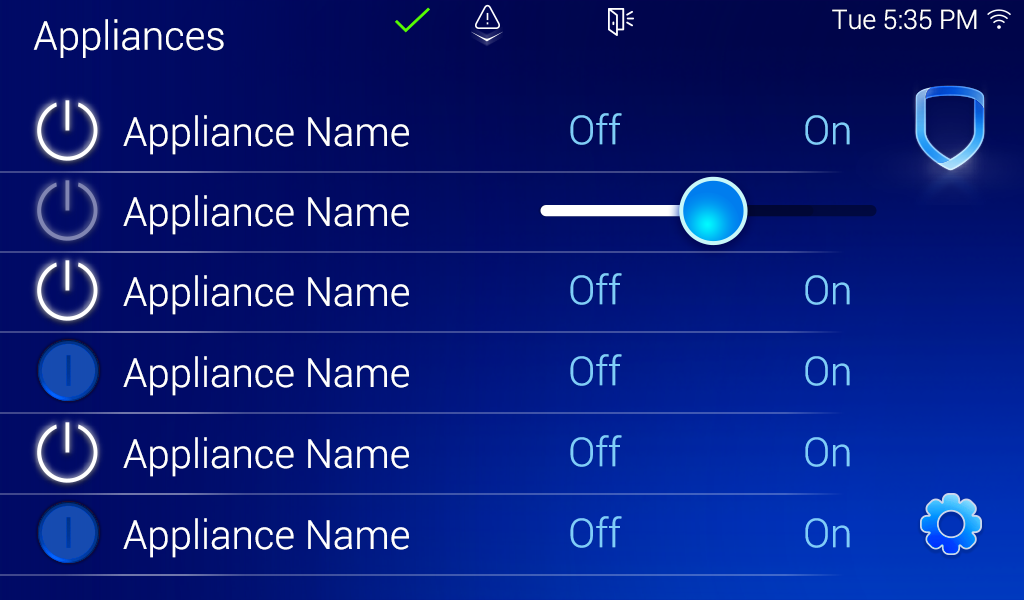
Z-Wave Appliances
Z-Wave appliances can be turned on or off at the keypad. Use the multilevel slider on the right side of the light to set the light at 0, 25, 50, 75, or 100. 0 is Off and 100 is On.
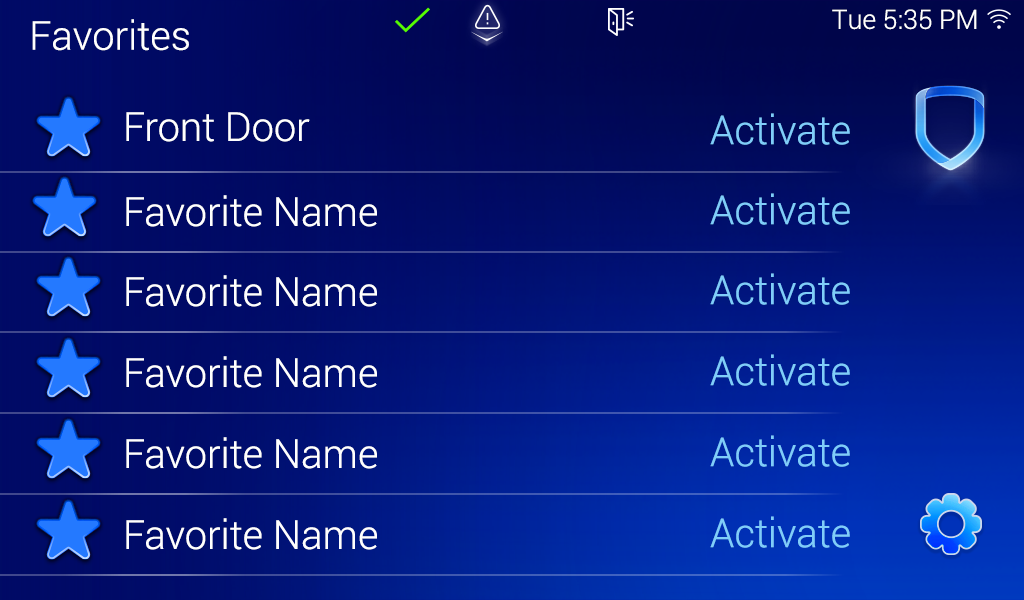
Z-Wave Favorites
Z-Wave favorites can be assigned at the keypad. Press Activate next to the name of the favorite that you want to activate. The name of the favorite changes to Activated after the process is complete.