
Z-Wave home automation devices can be enabled and controlled from an 8863. You can turn
Z-Wave lights and appliances on and off, lock or unlock doors, open or close garage doors, control your thermostat, and create and activate new favorites directly from the keypad.
Enable the Z-Wave Menu
Before the Z-Wave devices can be operated through the keypad, the Z-Wave Lights, Doors, Thermostats, Appliances, and Favorites need to be enabled in Carousel Z-Wave Items.
To enable these pages, navigate to Options > Installer Options > Carousel Z-Wave Items and select the carousel menu items you want accessible from the home screen. You can then access each page from the Carousel menu and configure your devices as needed.
Use Z-Wave on the Keypad
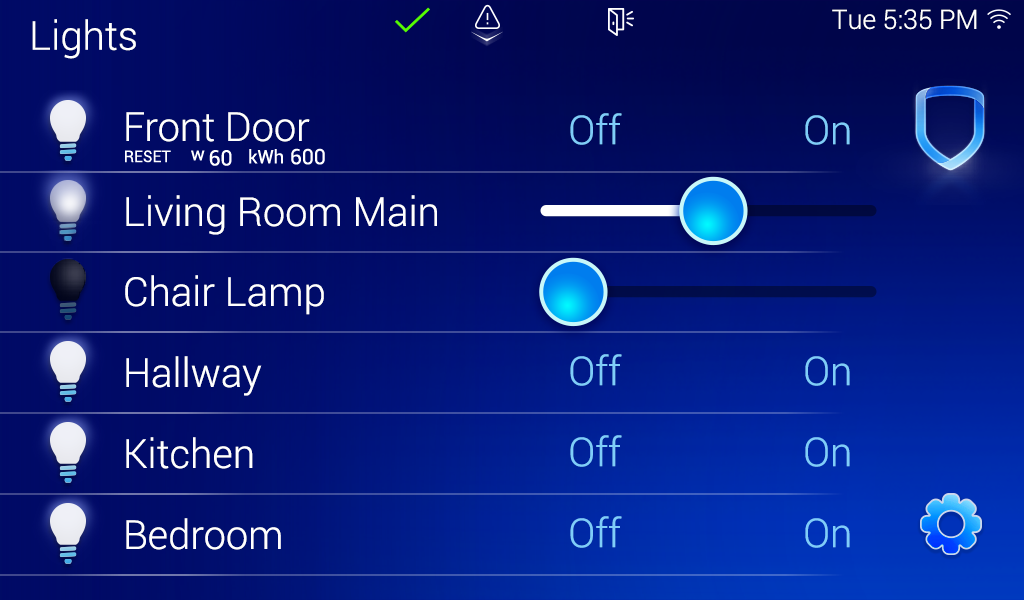
Z-Wave Lights
Use the multilevel slider on the right side of the light to set the light at 0, 25, 50, 75, or 100. 0 is OFF and 100 is ON.
To reset the metered switch for a light, select RESET underneath the name of the light.
If the light is metered, the wattage (w) and kilowatt-hour (kWh) display under the name of the light.
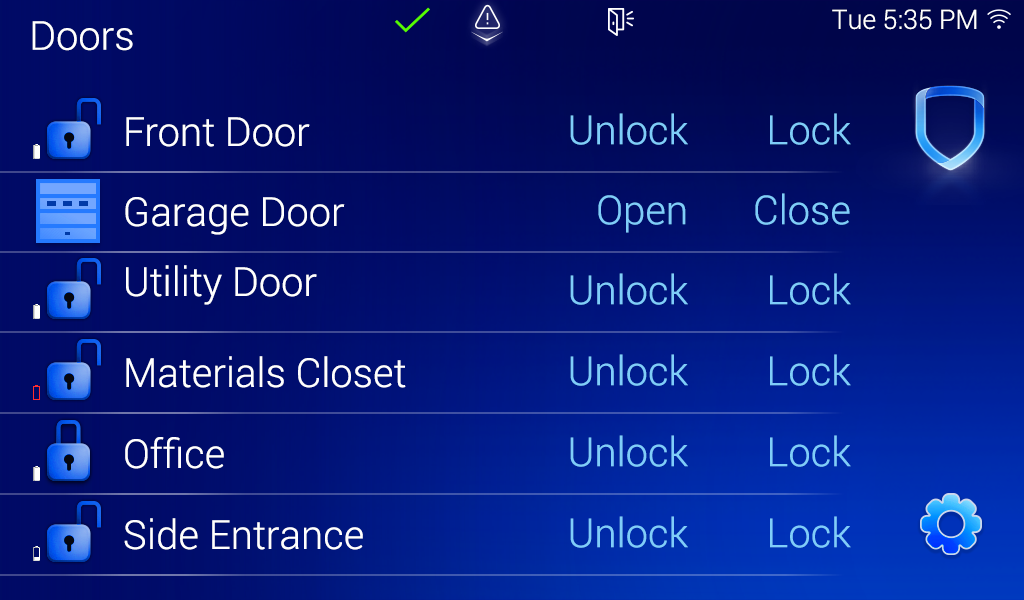
Z-Wave Doors
Z-Wave doors and garage doors can be locked or unlocked at the keypad.
Next to each door, the battery level of the lock associated with the door and the status of the door is displayed.
Select Lock or Unlock to change the status of a door.
Select Open or Close to change the status of a garage door.
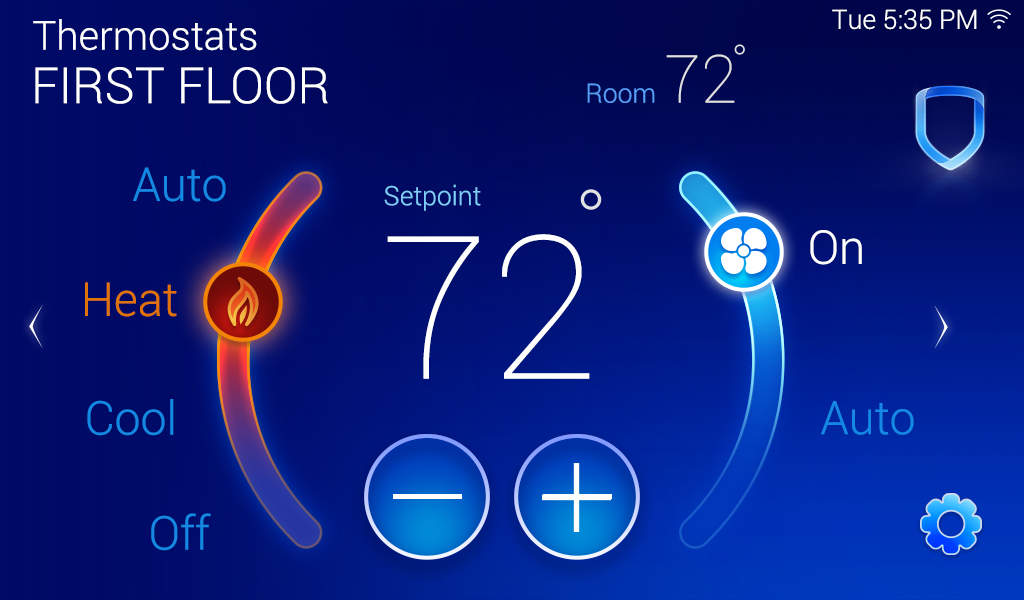
Z-Wave Thermostat
Use the slider handle on the left of the setpoint to adjust the thermometer to Auto, Heat, Cool, or Off.
Use the slider handle on the right of the setpoint to set the fan to On or Auto.
To change the temperature, use the setpoint increase and decrease buttons.
When there are multiple Z-Wave thermostats on a system, swipe the screen to the left to access additional thermostats.
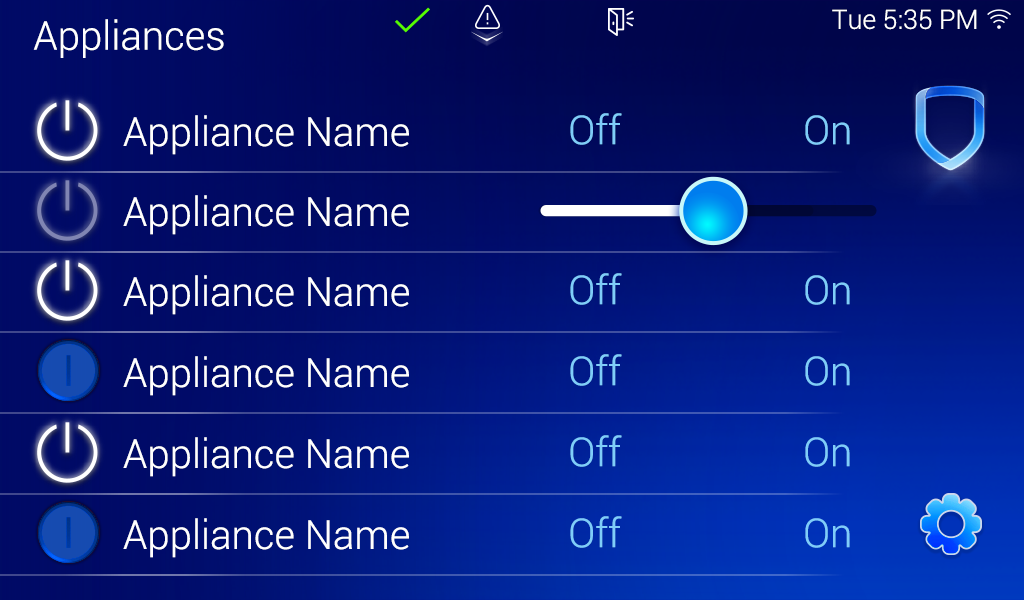
Z-Wave Appliances
Z-Wave appliances can be turned on or off at the keypad. Use the multilevel slider on the right side of the device to set the device at 0, 25, 50, 75, or 100.
0 is OFF and 100 is ON.
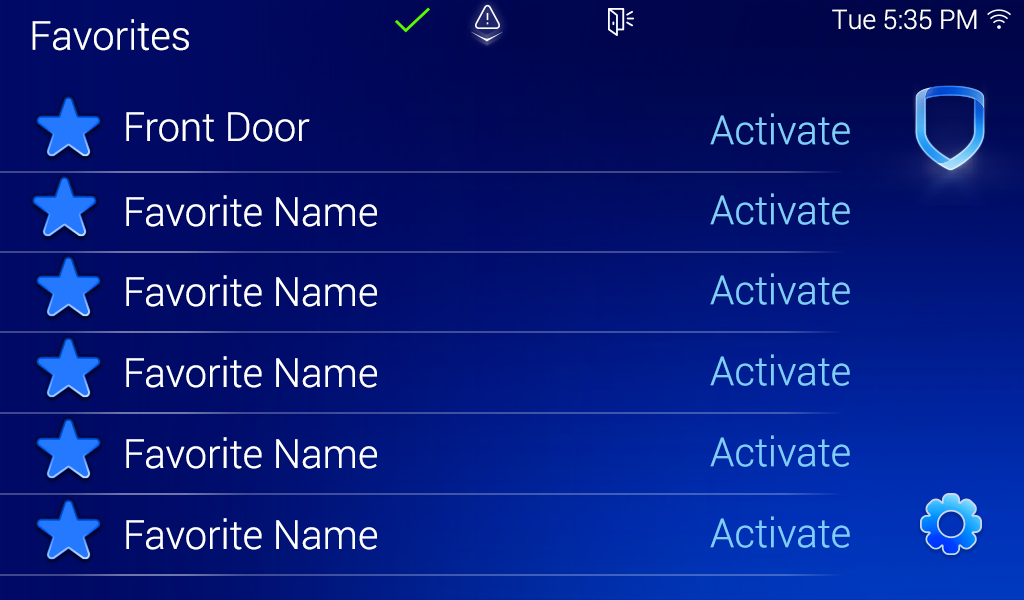
Z-Wave Favorites
A Z-Wave Favorite is an automation preset for a collection of selected devices. For example, you can create a Favorite that, when activated, can turn on or off all lights in the room at the same time.
Configure a Favorite
You can create and configure these in your keypad by navigating to Favorites in the Carousel menu, then selecting the Settings icon and entering your User Code. This brings you to the Z-Wave Setup Menu. You can add, edit, or delete Favorites from this menu.
The keypad supports up to 20 Favorites, with up to 25 Z-Wave devices per Favorite.
You can also add Favorite shortcuts on the video doorbell screens. See Video Devices: Video Doorbell Features to learn more.
Activate a Favorite
After a Favorite has been created, you can activate it from the list. Select Activate next to the Favorite that you want to activate. The name of the Favorite changes to Activating… while the request is being processed, and then to Activated after the process is complete.