8863 7-Inch Touchscreen Keypad

Network Enabled Features

Regardless of communication method, it’s recommended to connect your keypad to a Wi-Fi network to ensure access to all 8863 features. The following features are only available to keypads connected to network.

Note: Network is also required to enable video devices. To learn more about enabling and viewing video devices and accessing individual features, refer to Video Devices.

Enable Voice Annunciation

To enable the keypad to annunciate that the pre-defined zone name has been opened when the zone is tripped, use the Voice Annunciation toggle and adjust the volume with the slider in the Display & Sound settings menu.
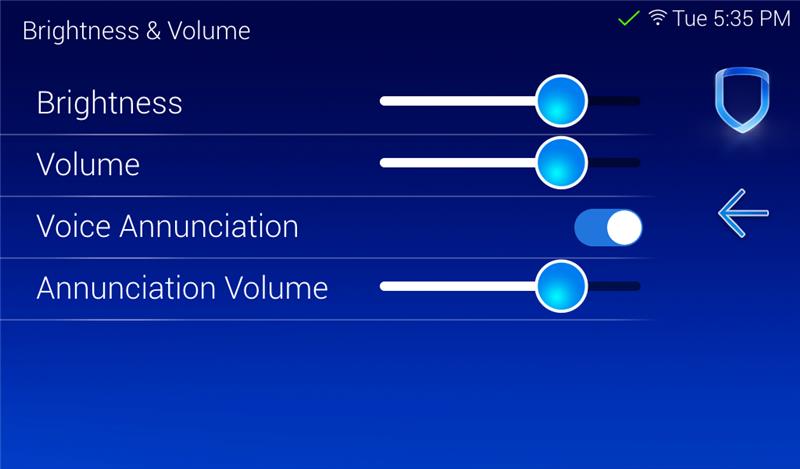
NEW voice annunciation toggle and slider.jpg

Pre-Defined Zone Name List

If a zone name does not match one of the pre-defined names in the categories below, the keypad annunciates the zone number and appropriate message. Ensure all zone names are spelled correctly and have proper spacing in between words. 24-Hour and Day zone types do not support this feature.

Pre-Defined Door Names

B

  • Back Door

  • Back Entry Door

  • Basement Door

  • Breakroom Door

  • Breezeway Door

D

  • Den Door

E

  • East Door

  • Employee Door

  • Entry Door

  • Entry Doors

F

  • Front Entry Doors

  • Front Door

  • Front Left Door

  • Front Right Door

G

  • Garage Door

  • Garage Main Door

  • Garage Side Door

K

  • Kitchen Door

  • Kitchen Slider

L

  • Laundry Room Door

  • Living Room Door

  • Lobby Door

M

  • Master Bed Door

  • Main Entry Door

  • Master Door

N

  • North Door

O

  • Office Door

  • Overhead Door

P

  • Patio Door

R

  • Rear Entry Door

S

  • Safe Door

  • Shed Door

  • Shipping Door

  • Shop Door

  • Side Door

  • Side Entry Door

  • Sliding Door

  • South Door

  • Storage Room Door

  • Stockroom Door

  • Stock Room Door

  • Sunroom Door

V

  • Vault Door

W

  • Warehouse Door

  • West Door

Pre-Defined Window Names

B

  • Basement Window

  • Bathroom Window

  • Breakroom Window

  • Breezeway Window

D

  • Dining Window

  • Dining Windows

F

  • Front Windows

G

  • Garage Window

  • Garage Windows

K

  • Kitchen Window

  • Kitchen Windows

L

  • Laundry Window

M

  • Master Windows

O

  • Office Window

  • Office Windows

S

  • Shop Window

Pre-Defined Motion Names

B

  • Back Motion

  • Back Door Motion

  • Back Hall Motion

  • Basement Motion

  • Break Room Motion

  • Breezeway Motion

D

  • Den Motion

  • Dining Motion

E

  • East Motion

  • Entry Motion

F

  • Family Motion

  • Foyer Motion

  • Front Motion

  • Front 360 Motion

G

  • Garage Motion

H

  • Hall Motion

  • Hallway Motion

K

  • Kitchen Motion

L

  • Living Motion

  • Lobby Motion

M

  • Master Motion

  • Motion

  • Motion Detector

N

  • North Motion

O

  • Office Motion

P

  • Panel Motion

R

  • Rear Motion

  • Rear Hall Motion

  • Reception Motion

S

  • Safe Motion

  • Shed Motion

  • Shop Motion

  • South Motion

  • Storage Motion

T

  • Teller Motion

U

  • Upstairs Motion

V

  • Vault Motion

W

  • Warehouse Motion

  • West Motion

#

  • 2nd Floor Motion

Miscellaneous Pre-Defined Zone Names

C

  • Cash Safe

D

  • Driveway Beam

F

  • Front Entry

  • Front Glassbreak

G

  • Garage Entry

  • Glass Break

K

  • Kitchen

L

  • Low Temperature

M

  • Main Entry

  • Master Bedroom

N

  • Night Drop

O

  • Office Glass

R

  • Roof Hatch

S

  • Safe

  • Spare

U

  • Utility Room

V

  • Vault

  • Vault Sound

W

  • Wall Button

  • Water Detector

Upload a Logo and Dealer Information

To upload a custom logo onto your 7-Inch Graphic Touchscreen Keypad home screen, you’ll need access to the associated Dealer Admin account and system, and your keypad needs to be connected to network. The 7-Inch Keypad does not support the use of a microSD card to complete the upload process.

Before you begin, ensure the logo is a 270 x 110 or higher pixel resolution PNG file suitable for a dark background and can be accessed on the same device you access Dealer Admin.

Complete the following steps to add the custom logo to the keypad:

  1. Log in to Dealer Admin (dealer.securecomwireless.com)

  2. Navigate to Customer > System Name.

  3. Select Settings > Dealer in the left-hand menu.

  4. Select the 8860 Private Label Settings tab.

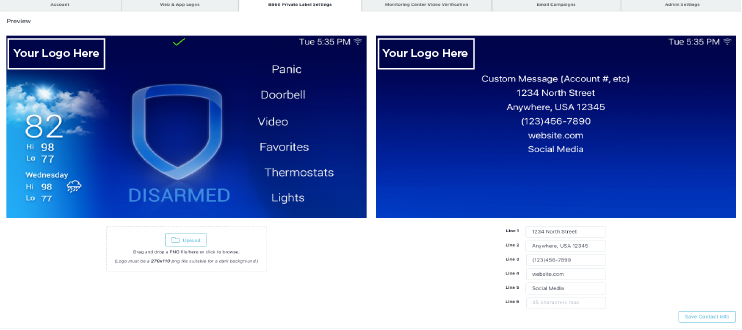
  5. Select Upload, locate the logo file, and select Open, or drag and drop the logo file into the box below the Preview images. The Preview image displays what the logo is going to look like once uploaded to the keypad.

  6. Optional: In the boxes under the custom message preview, add the Dealer Information. There are up to six lines with 45 characters each available for custom text. Custom Message (Account #, etc) is only visible in the Preview and does not appear on the keypad itself.

  7. Select Save Contact Info in the bottom right corner, then select Save in the top right corner.

  8. On the keypad, select the DMP logo in the corner. The keypad reaches out to Dealer Admin and pulls the new logo and dealer information.

Note: If the logo is not downloading to the keypad, confirm that the time and date on the control panel are accurate and that the keypad is connected to network, then try selecting the DMP logo again.
TU-1369.png