
.png?cb=8fcbd027f7eac228df146128cef7fd8e)
Installer Options
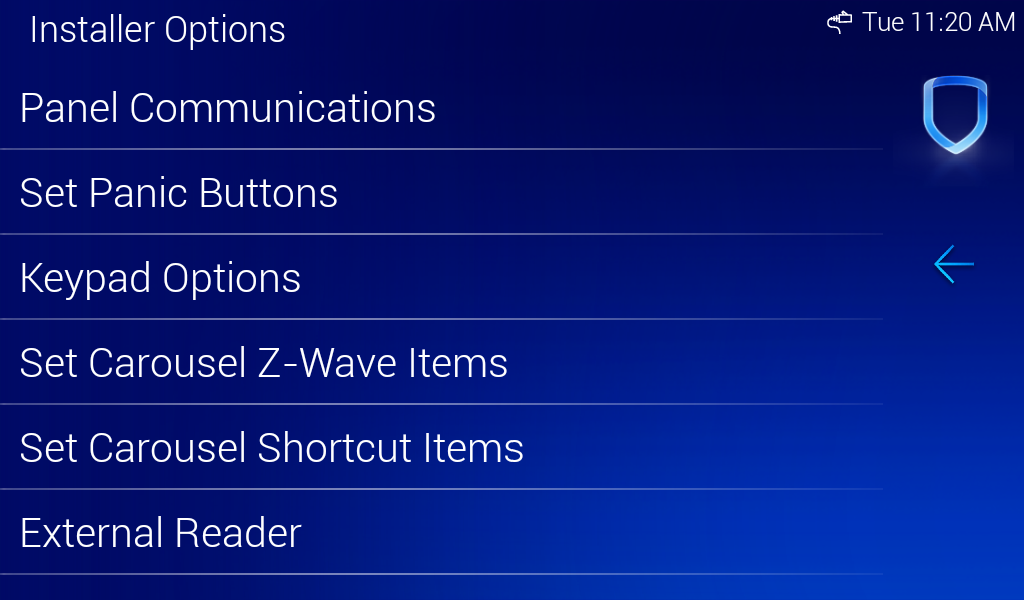
Installer Options is where keypad options, such as the keypad address, the default keypad message, and the network options, are programmed. To access the Keypad Installer Options menu, press Options in the Carousel menu. Select Installer Options, enter 3577 (INST), then press CMD.
Panel Communications
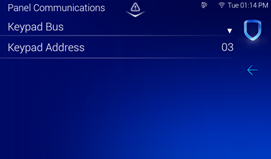
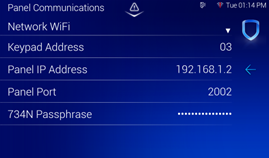
Panel Communications is where you can select the communication method for your keypad and enter information referenced during the programming portion of the keypad setup process. Select one of the following options.
Keypad Bus
Select Keypad Bus to communicate using the keypad bus on the keypad. You can enter the Keypad Address here.
Network Wi-Fi
Select Network Wi-Fi to communicate using Wi-Fi. You can enter the Keypad Address, Panel IP Address, Panel Port, and 734N Passphrase here, as needed.
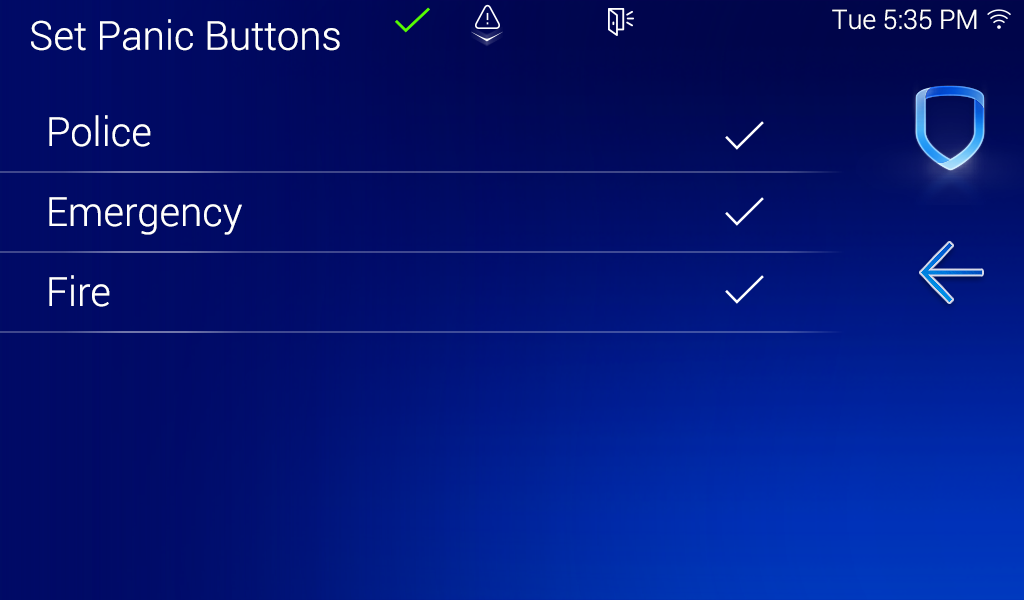
Set Panic Button
Use this option to enable or disable the panic keys. Select the panic buttons you would like to have displayed on the keypad. Once the panic option is enabled, a check mark displays next to the selected options. All options are disabled by default.
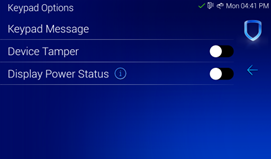
Keypad Options
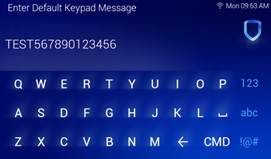
Select Keypad Message to enter a custom message of up to sixteen characters to appear at the top of the keypad display. Press any select area, enter a new message, and press CMD. If a message has been entered, it displays in the field until changed.
Use the Device Tamper toggle to enable or disable the tamper on the back of the keypad. It is recommended to disable this option if the keypad is mounted using the desk stand. Default is ON.
Display Power Status
To enable the No-AC or No-Battery icons, toggle the Display Power Status ON.
If a 7-inch keypad is connected to the panel via keypad bus, it receives the power status from the panel. If it is not connected via the keypad bus, it cannot receive a power status and cannot show the icons.
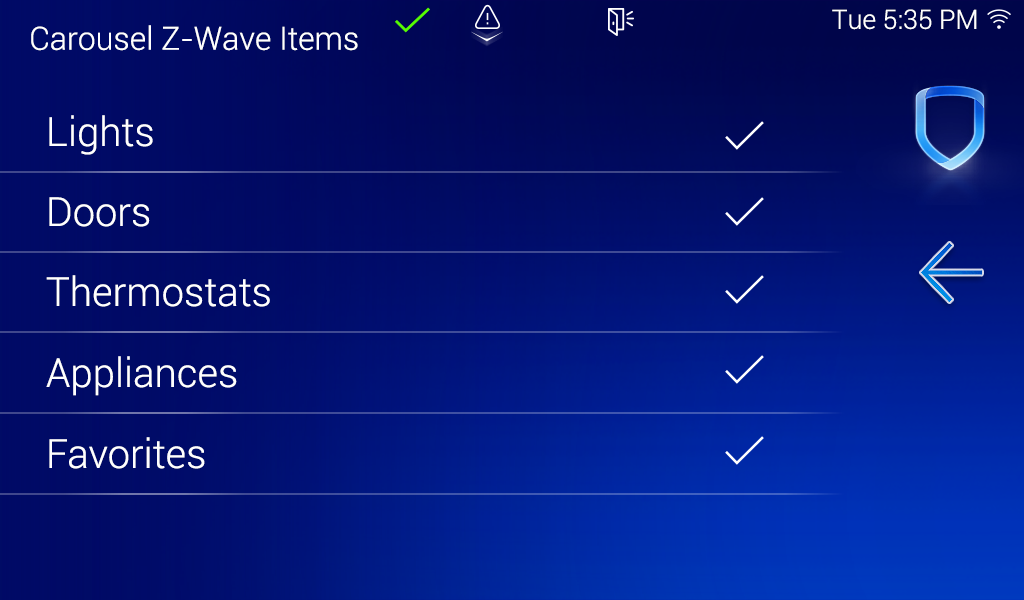
Set Carousel Z-Wave Items
Set Carousel Z-Wave Items allows you to select the Z-Wave options to display in the Carousel menu. Press an item to select and a check mark appears to indicate it is enabled. Press again to deselect that option. Items for the Carousel include Lights, Doors, Thermostats, Appliances, and Favorites. Press the back arrow to return to the previous screen. All items are disabled by default.
Set Carousel Shortcut Items
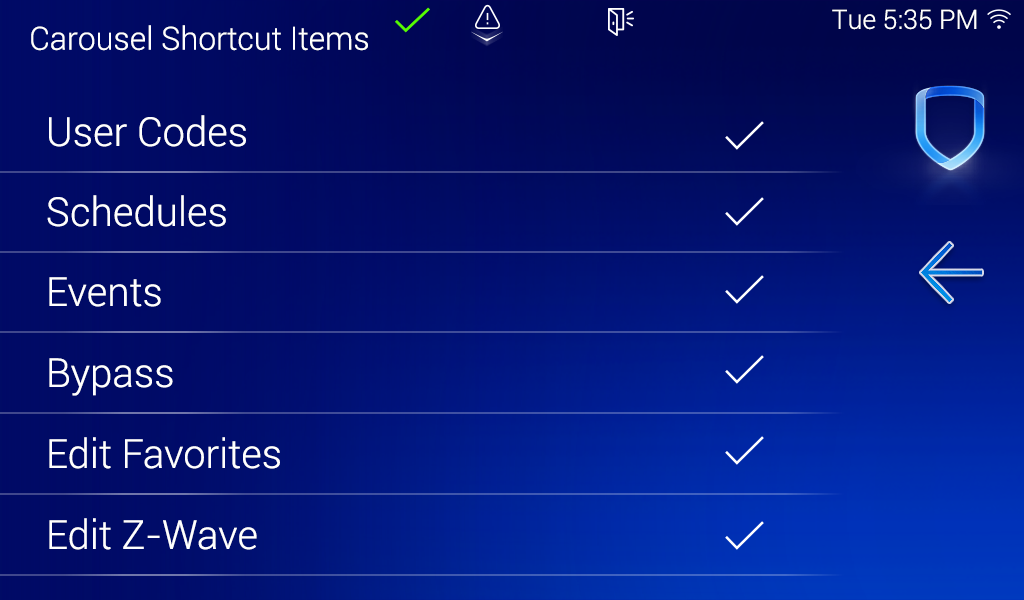
Set Carousel Shortcut Items allows you to select additional menu items to display in the Carousel menu. Press an item to select and a check mark appears to indicate it is enabled. Press again to deselect that option. Items for the Carousel include User Codes, Schedules, Events, and Bypass. All items are disabled by default.
Select Edit Favorites to display the Edit Z-Wave icon on the Favorites screen. Select Edit Z-Wave to display the Edit Z-Wave icon for the Lights, Doors, Thermostats, and Appliances screens.
Check for Updates
Note: 7-inch keypads are not updatable using a microSD card.
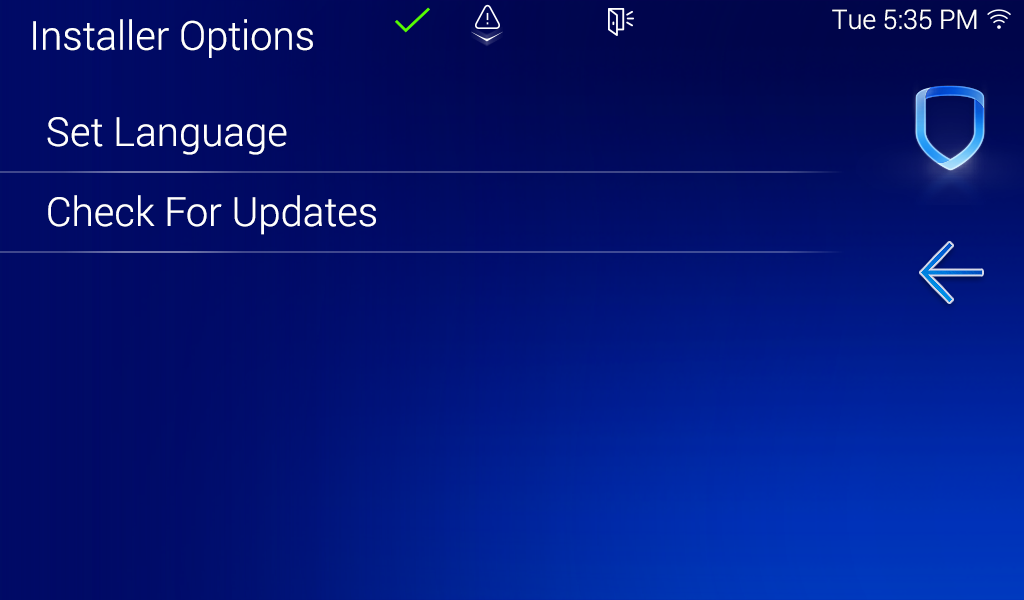
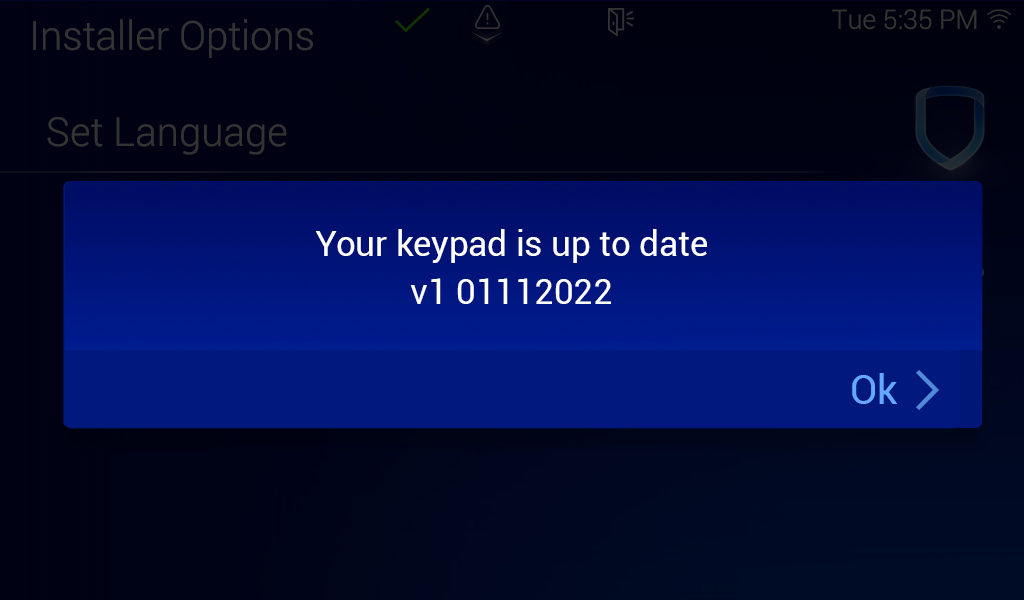
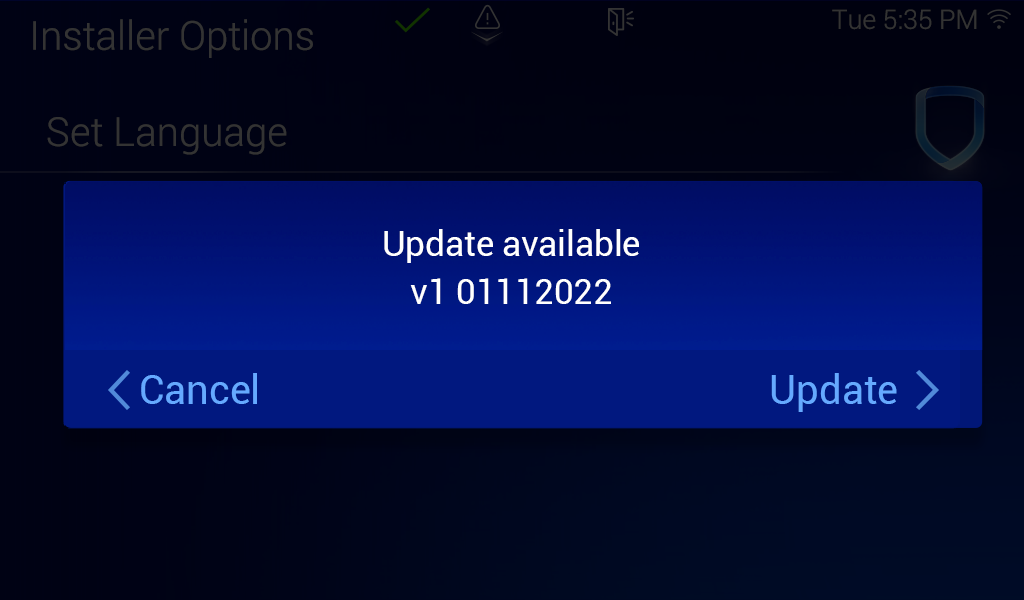
All models of the 7-Inch Touchscreen Keypad have local and remote update capabilities. The keypad needs to be connected to Wi-Fi to perform a local and remote update. The remote update capabilities can be used for per device updates through Dealer Admin.