
8862 7-Inch Touchscreen Keypad
 8862 7-Inch Touchscreen Keypad
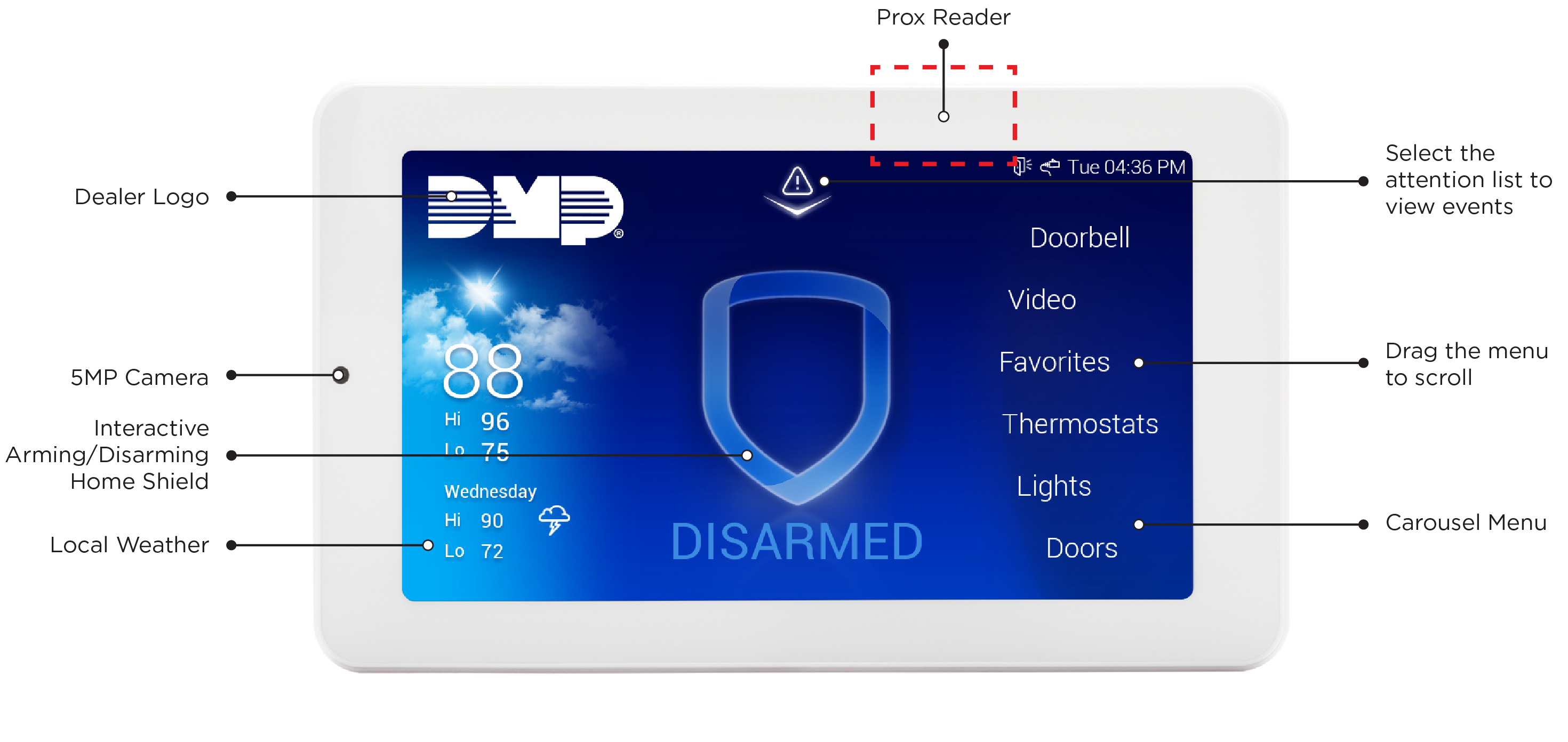
Note: The red box indicates where a credential needs to be placed on the keypad to be validated by the prox reader. An audible beep confirms that the reader has detected the credential.
The 8862 7-Inch Touchscreen Keypad provides a full-color, capacitive touchscreen interface for managing DMP security systems. Its touchscreen design provides intuitive access to system functions, menus, video features, and connected devices. The keypad includes an on-board 5MP camera, optional panic keys, an internal speaker, and an on-board proximity card reader designed to read 125KHz proximity credentials.
The 8862 can communicate with compatible DMP panels through Wi-Fi or the keypad bus, allowing it to be installed in a variety of system configurations. When connected to a network, the keypad provides access to additional video and system-management features.
Features
7-inch touchscreen — Provides a large, full-color, multi-touch display for navigating the security system.
Built-in audio — Includes an internal speaker for zone annunciation and 2-way audio to cameras and video doorbells.
Flexible installation options — Can communicate with compatible panels using Wi-Fi or the keypad bus.
Built-in Prox reader — Includes an on-board proximity card reader designed to read 125KHz proximity credentials.
Interactive arming and disarming — Provides an intuitive interface for arming and disarming the system and selecting areas or system configurations.
Video integration — When network-connected, the 8862 can display live video and video clips from compatible DMP video devices, including VUE video doorbells and cameras.
Arming/Disarming snapshots — The onboard 5-megapixel camera can capture verification snapshots associated with arming and disarming events.
Bluetooth disarming — Allows authorized Bluetooth devices to be used for convenient system disarming. Current 8862 firmware supports up to six Bluetooth disarming devices.
Z-Wave control — Provides enhanced control of supported Z-Wave devices from the keypad.
Carousel Menu — Provides quick access to frequently used features and connected devices.
System status and events — Displays system status, attention events, and other information to help users monitor the security system.
Remote updates — Network-connected keypads can receive updates remotely through Dealer Admin, helping keep the keypad current without requiring an installer to update each device locally.
Next Steps
-
Step 2: Prepare for Installation
Determine what you need to complete the installation and programming process for your 8862. -
Step 3: Set Up Your Keypad
Choose the communication method that is best for your keypad installation, then complete the full set up process for your keypad. -
Step 4: Use and Configure Your Keypad
Learn how to navigate, configure, and use the keypad as part of your system. -
Step 5: Learn More About Your Keypad
Find additional information about your keypad, including compatibility, ordering information, certifications, and specifications.